Getting started

Welcome to Wild Fractal Toolbox.

A few minutes are all it takes to build your first fractal. Follow the videos or the step-by-step guide below.

Download

Get the Windows or Linux version from the link in the email you received after your purchase, then install it.

Activate

On first launch, paste the license key from your email and click Activate. You can find it again at any time under Help › Licence…

Explore

Open an example, tweak it, then create your own fractal. Your key activates on 3 computers, for life.

Installation

Installed in a minute.

No administrator rights needed.

Linux

  1. Download WildFractalToolbox-linux-install.sh from the link in your email.
  2. Open a terminal (Ctrl+Alt+T on Ubuntu and Linux Mint) and type: sh ~/Downloads/WildFractalToolbox-linux-install.sh
  3. Start Wild Fractal Toolbox from your applications menu.

Works on Ubuntu 20.04+, Linux Mint 20+, Debian 11+, Fedora, Arch, Manjaro… To update, just run the new installer: your license is kept. To uninstall: wildfractaltoolbox-uninstall.

Windows

  1. Download WildFractalToolbox-windows-setup.exe from the link in your email.
  2. Double-click it and follow the wizard. If Windows shows “Windows protected your PC”, click More info, then Run anyway.
  3. Start Wild Fractal Toolbox from the Start menu or the desktop.

Windows 10 or 11, 64-bit. No administrator rights needed. To update, just run the new installer: your license is kept. To uninstall: Settings › Apps.

First launch

  1. Choose your language.
  2. Paste the license key from your email and click Activate (Internet connection required).
  3. You're done: the next launches open the software directly.

Verify your download (optional) — SHA-256 checksums of the current installers:
Windows WildFractalToolbox-windows-setup.exe (1.01.148): f145cc1fef589db9570d36678d45811349e7f7ce30ff22ec26d403bf13ab19a7
Linux WildFractalToolbox-linux-install.sh (1.01.149): 24382a89e7684e70e0b8213111f4172d33da9ac816da595b1ff4489155f369c3
On Windows: certutil -hashfile WildFractalToolbox-windows-setup.exe SHA256; on Linux: sha256sum WildFractalToolbox-linux-install.sh.

Videos

Watch, then try it yourself.

Short tutorials, each focused on one construction or one feature.

Building a tree with WFT

From an empty fractal to a complete tree: placing transformations with the mouse, fine-tuning and drawing.

Coming soon

Rendering and color palettes

Density, colorful transformations, radial, concentric: picking a style and fine-tuning it.

Coming soon

Morphing and video export

Morph one fractal into another and generate an MP4 video.

Watch on YouTube

Step-by-step guide

The essentials, in six steps.

The settings panels live in the vertical tabs to the right of the drawing area.

Start from an example

The Examples tab offers 180 ready-made fractals: ferns, trees, snowflakes, dragons, spirals…

Select one in the list and click Open example. It is the fastest way to understand how a shape is built.
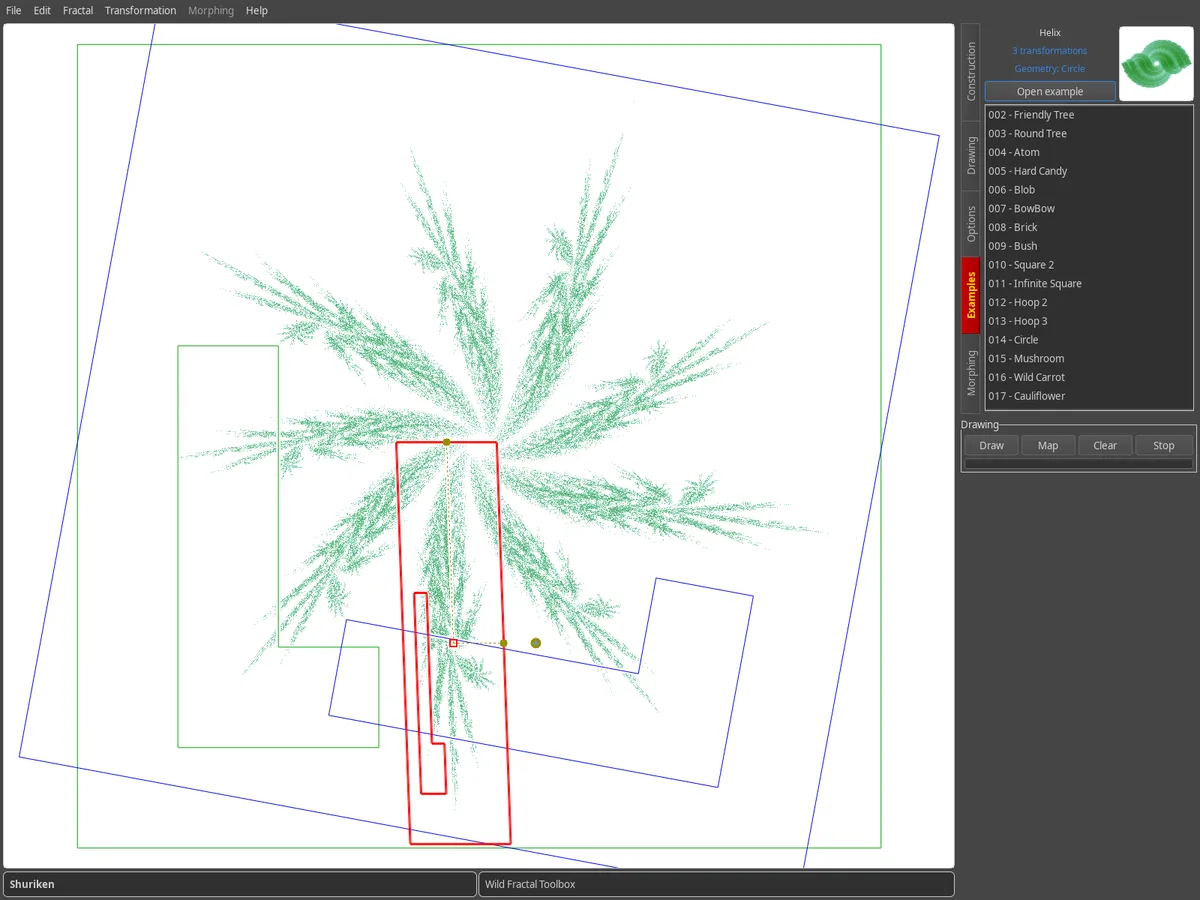
Examples tab: list of example fractals with a preview, the Shuriken fractal shown in the drawing area.

Build on the map

An IFS fractal is a set of transformations. Each one appears as a scaled and moved copy of the map; the selected transformation is drawn in red.

  • Fractal › New fractal starts from scratch.
  • New adds a transformation.
  • Drag it with the mouse, or adjust Shearing, Rotation, Scaling and Translation with the sliders.

The attractor is redrawn in real time after every change.
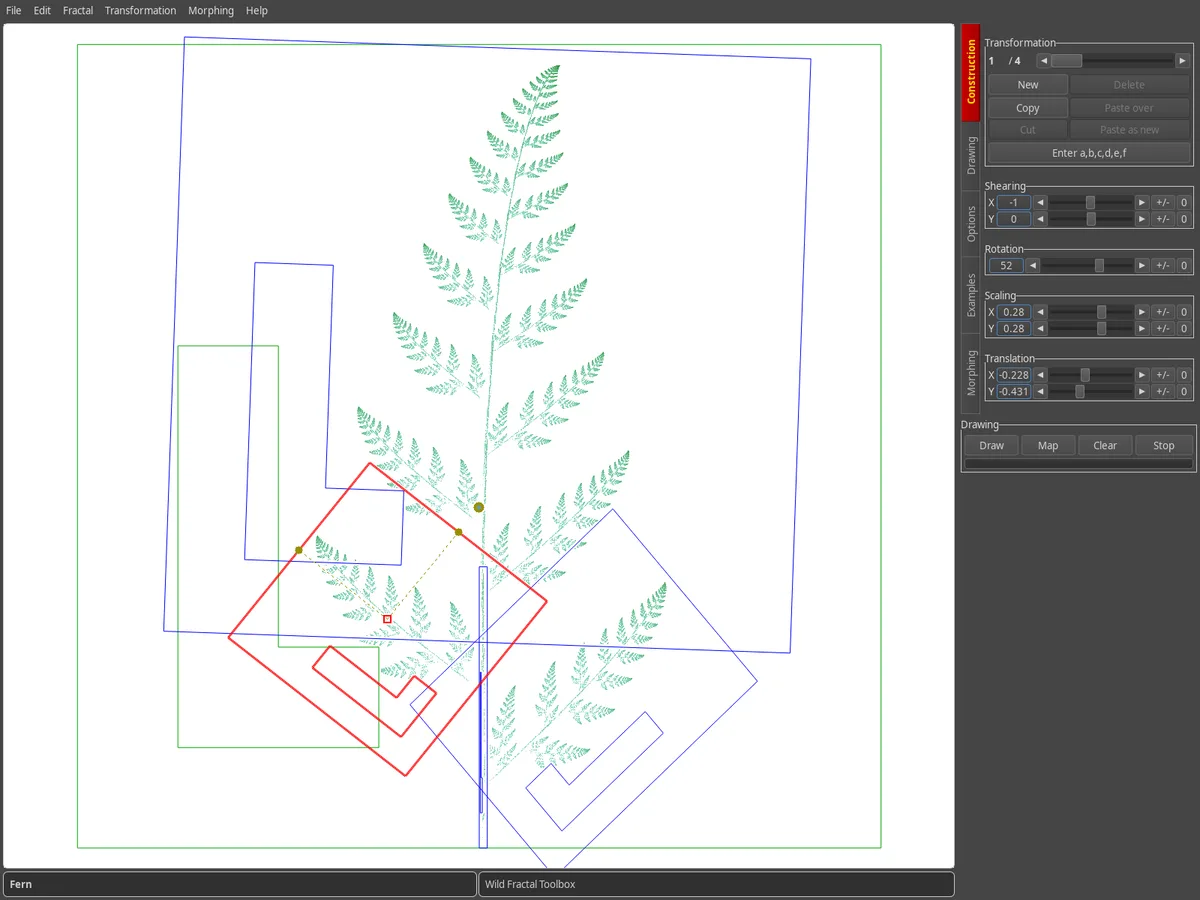
Construction tab: transformation map of the fern, selected transformation in red, adjustment sliders on the right.

Enter the coefficients

Prefer the precision of numbers? The Enter a,b,c,d,e,f button opens the affine matrix of the selected transformation.

To import a whole fractal described as text, use Fractal › Import a fractal from matrix text…
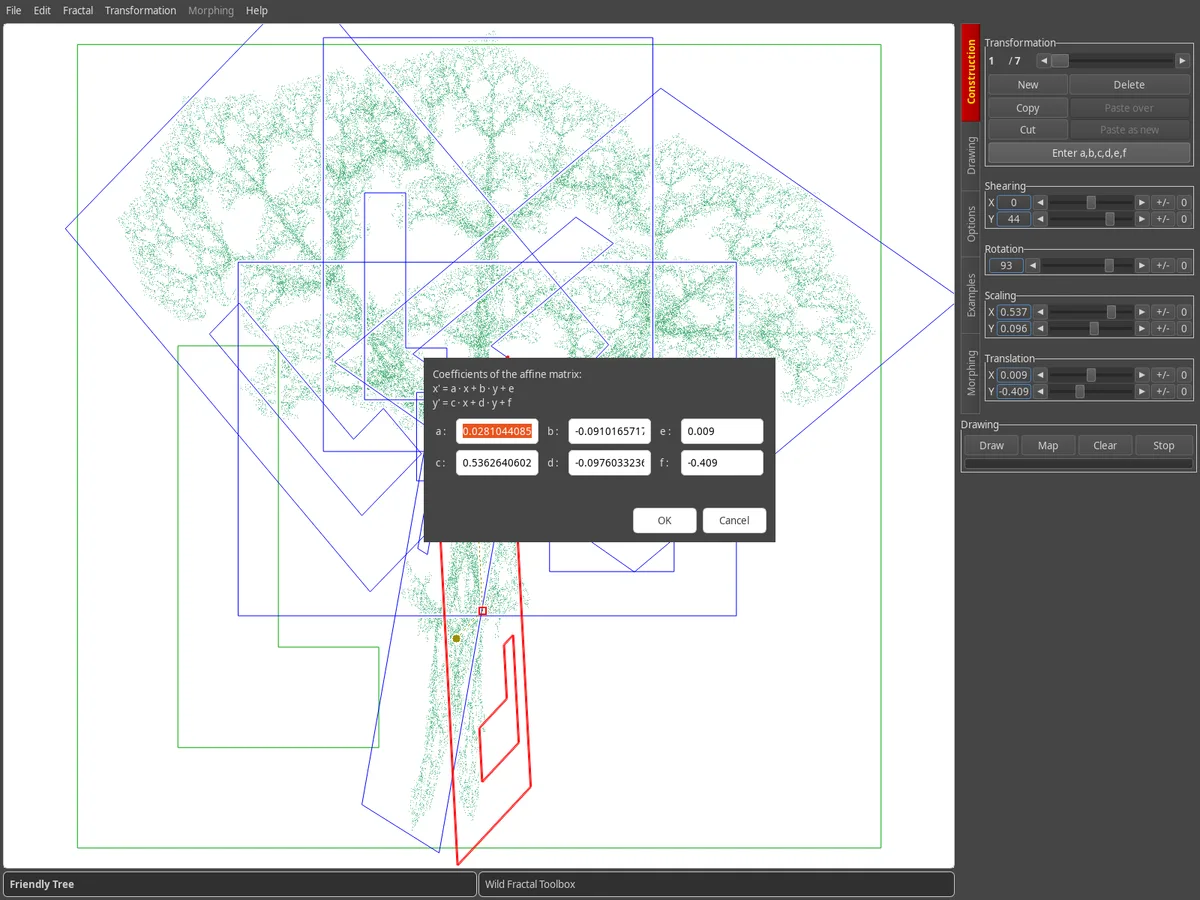
Dialog for entering the a, b, c, d, e, f coefficients above the map of a tree.

Choose the map geometry

In the Options tab, Map geometry changes the base shape: square, triangle, hexagons, circle, pentagon, octagon, diamond.

Map drawing shows or hides the attractor behind the transformations while you build.
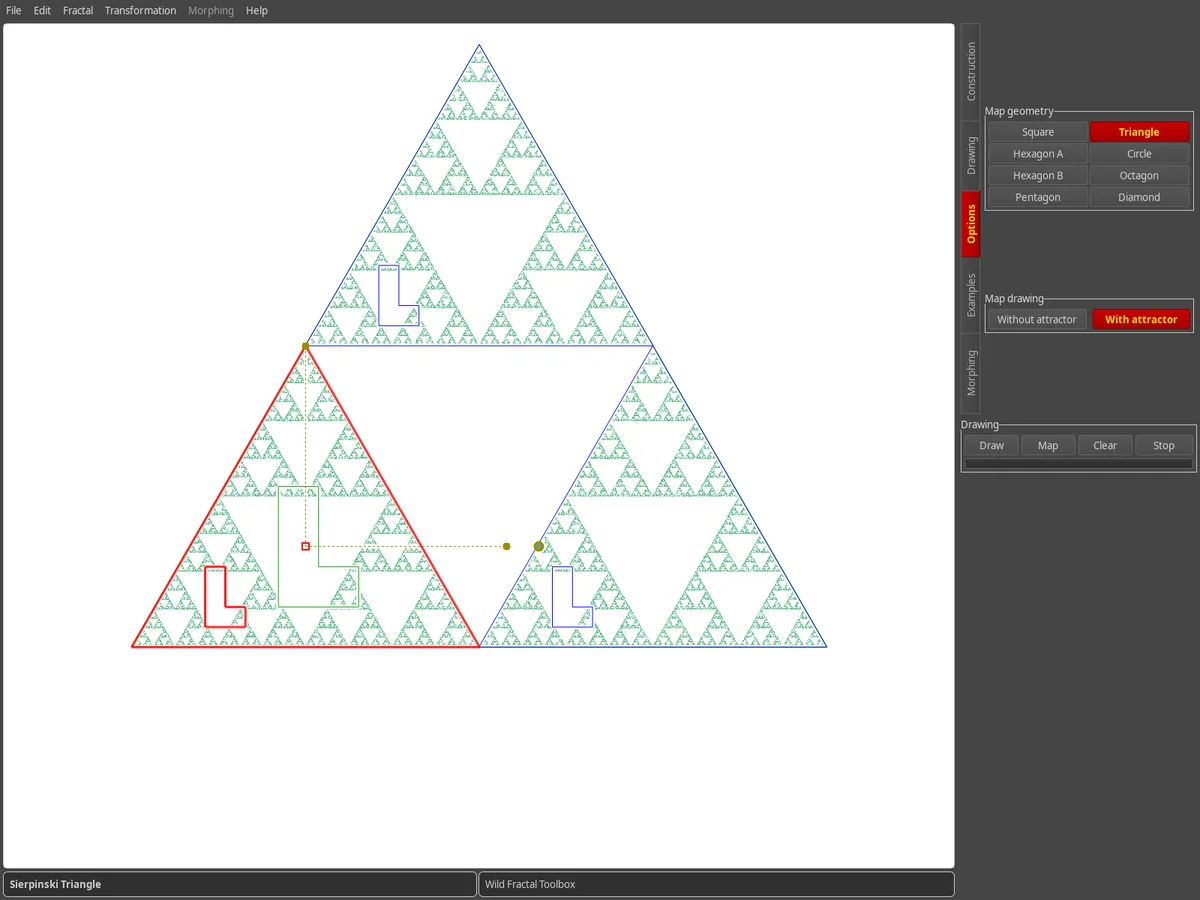
Options tab: Triangle geometry selected, map of the Sierpinski triangle.

Add some style

The Drawing tab gathers the drawing methods: random, density, palette density, colorful transformations, zebra, radial, concentric.

Pick a color palette and the number of points, then click Draw. Save the result with File › Save image…
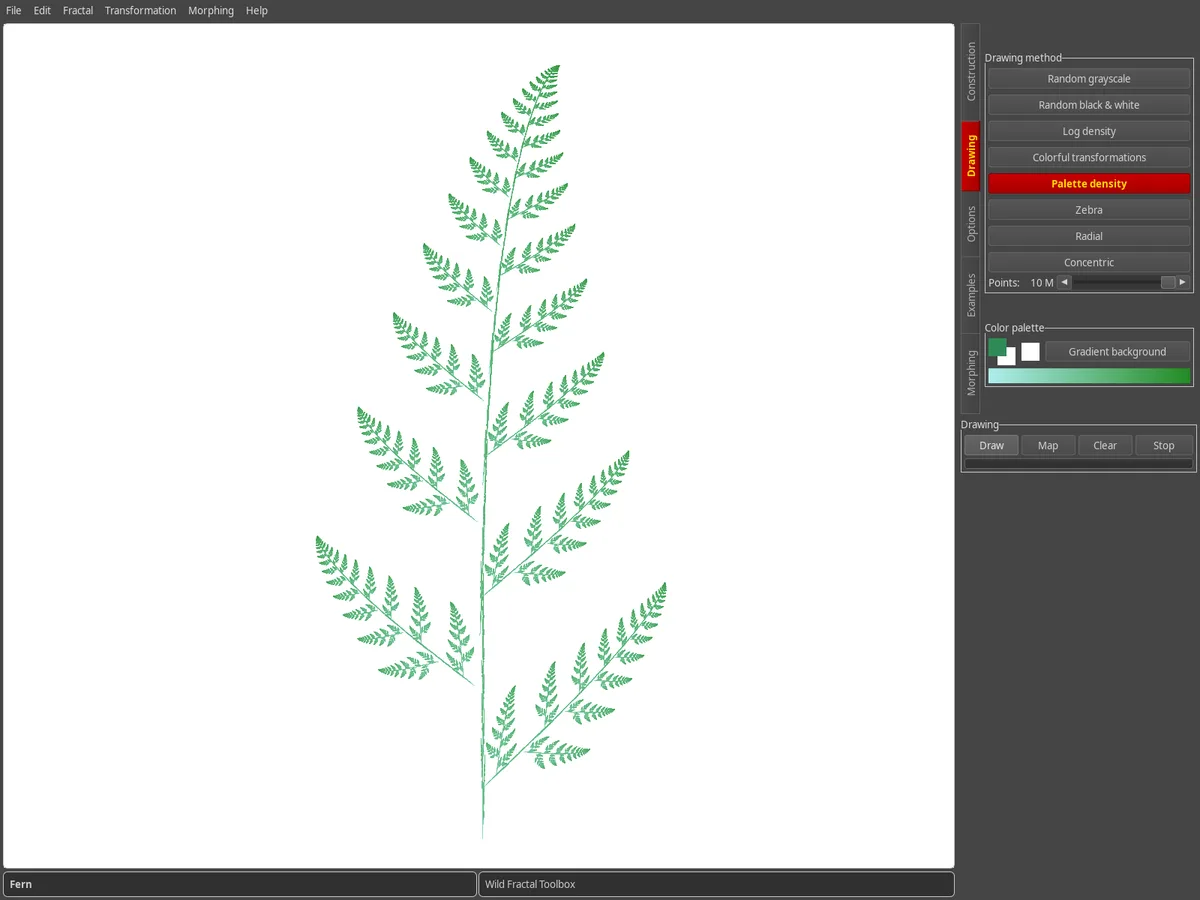
Drawing tab: fern rendered with a green palette density on a white background.

Animate with morphing

The Morphing tab interpolates between two fractals. Load the Source and the Destination, set the Number of steps and browse the intermediate steps.

Export the animation with Morphing › Generate a video…
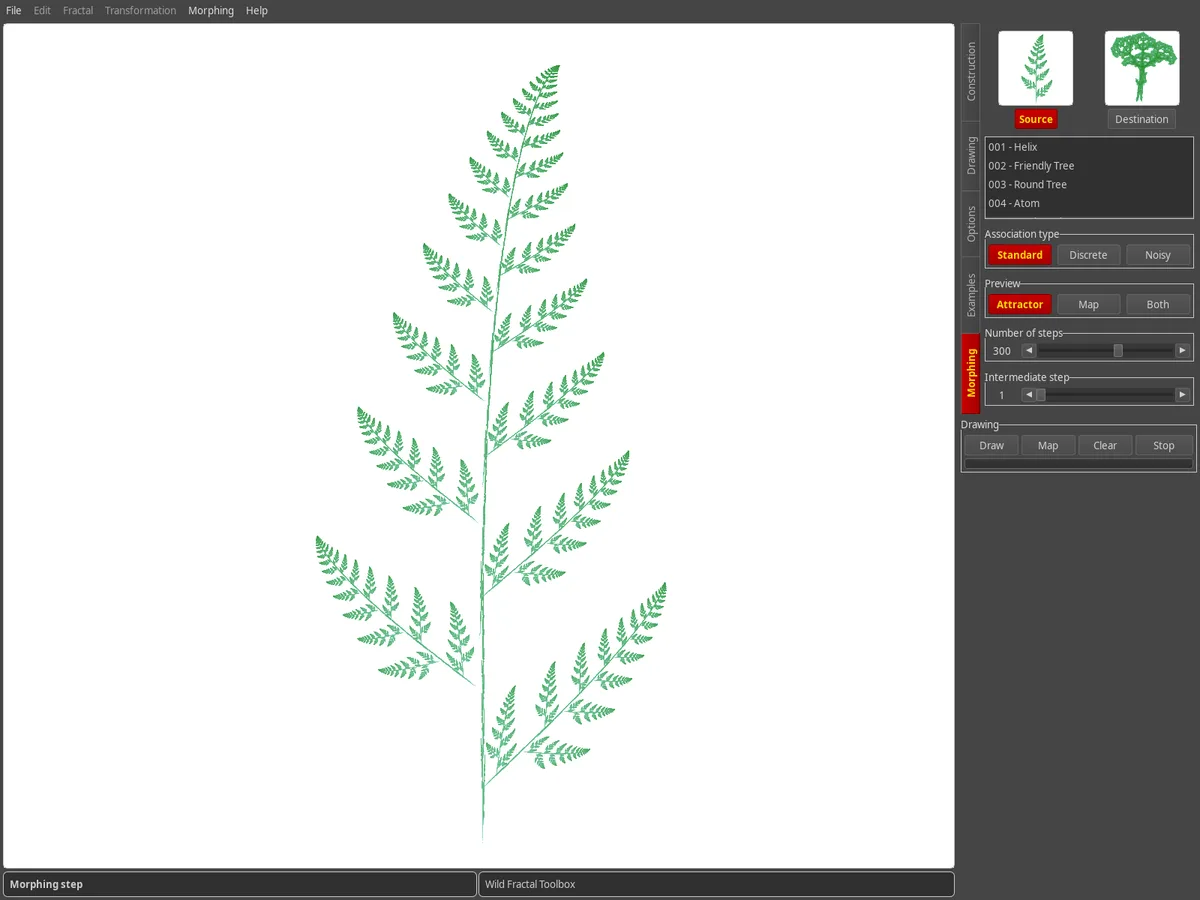
Morphing tab: thumbnails of the source and destination fractals, a morphing step displayed.
Tips

Good to know.

How do I save my fractal?

File › Save… (Ctrl+S) saves the fractal; File › Open… (Ctrl+O) loads it back. On the next launch, the software picks up the last fractal of your session.

Can I change the interface language?

Yes: Help › Langue / Language offers more than 100 languages.

How do I measure the fractal dimension?

Fractal › Calculate fractal dimension (box-counting)… estimates the dimension, and also gives the exact mathematical value when the fractal is self-similar.

I'm switching computers, what about my license?

Your key activates on 3 computers. Just enter it on the new machine via Help › Licence…

Found a bug, have an idea?

Write to us from Help › Report a bug / feedback / request a feature, or through the contact page.